警告
本文最后更新于 2024-07-22,文中内容可能已过时。
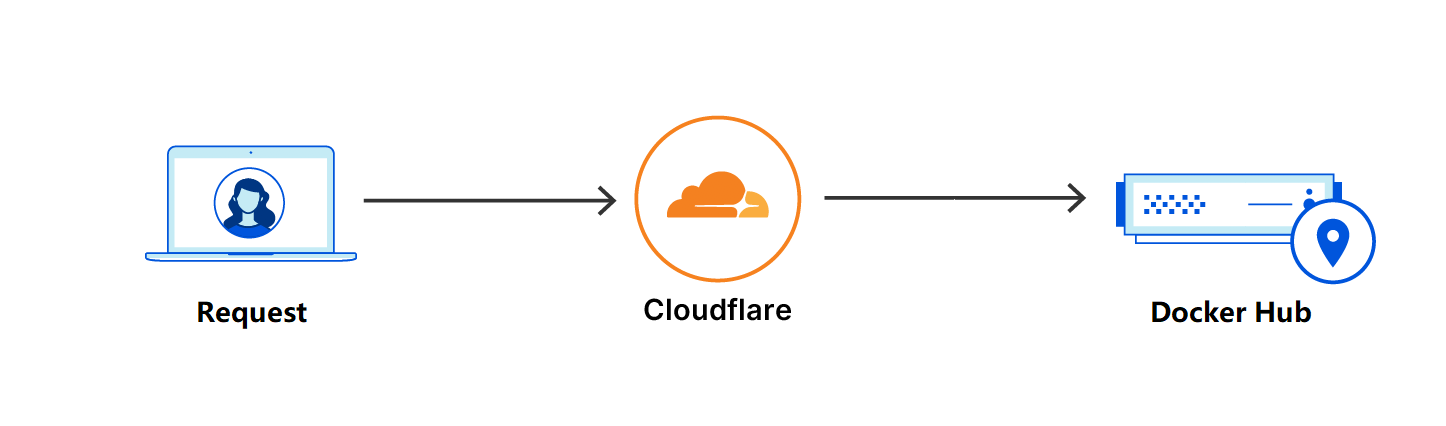
不知为何,现在大多数的 docker hub 镜像加速站都停止服务,而官方站点又因某些原因访问不到或延迟很高。所以,今天来记录一种通过 CloudFlare 搭建一个自己的镜像加速服务。
注意: 此方案需要有域名才行,后续需要给域名绑定到 Cloudflare,建议直接在腾讯云-域名注册上面搞一个,选最便宜的就行。

进入官网,自行进行注册操作
https://dash.cloudflare.com/
找到你的域名注册商,然后修改 DNS 为phil.ns.cloudflare.com 和 marjory.ns.cloudflare.com,这样才能绑定到 cloudflare

打开 cloudflare,绑定站点,选择免费。
注册后绑定一个域名,这个域名的 DNS 需要设置 cloudflare 的才能绑定成功。

在左侧 workers and pages,然后新建,名字随便起。没有过多的配置,直接完成!


点击右上角的编辑代码,进入

如果所示,代码里面的docker.xxoo.team请替换成你自己的域名。

  1
  2
  3
  4
  5
  6
  7
  8
  9
 10
 11
 12
 13
 14
 15
 16
 17
 18
 19
 20
 21
 22
 23
 24
 25
 26
 27
 28
 29
 30
 31
 32
 33
 34
 35
 36
 37
 38
 39
 40
 41
 42
 43
 44
 45
 46
 47
 48
 49
 50
 51
 52
 53
 54
 55
 56
 57
 58
 59
 60
 61
 62
 63
 64
 65
 66
 67
 68
 69
 70
 71
 72
 73
 74
 75
 76
 77
 78
 79
 80
 81
 82
 83
 84
 85
 86
 87
 88
 89
 90
 91
 92
 93
 94
 95
 96
 97
 98
 99
100
101
|
<!DOCTYPE html>
<html lang="en">
<head>
<meta charset="UTF-8">
<meta name="viewport" content="width=device-width, initial-scale=1.0">
<title>镜像使用说明</title>
<style>
body {
font-family: -apple-system, BlinkMacSystemFont, "Segoe UI", Roboto, "Helvetica Neue", Arial, sans-serif;
margin: 0;
padding: 0;
background-color: #f0f2f5;
display: flex;
flex-direction: column;
min-height: 100vh;
}
.header {
background: linear-gradient(90deg, #4e54c8 0%, #8f94fb 100%);
color: white;
text-align: center;
padding: 20px 0;
}
.container {
flex: 1;
display: flex;
justify-content: center;
align-items: center;
padding: 20px;
}
.content {
background: white;
border-radius: 8px;
box-shadow: 0 0 10px rgba(0, 0, 0, 0.1);
padding: 20px;
max-width: 800px; /* 调整后的宽度 */
width: 100%;
font-size: 16px; /* 放大字体 */
}
.code-block {
background: #2d2d2d;
color: #f8f8f2;
padding: 10px;
border-radius: 8px;
margin: 10px 0;
overflow-x: auto;
font-family: "Courier New", Courier, monospace; /* 保持代码块的字体 */
}
.footer {
background: #444;
color: white;
text-align: center;
padding: 5px 0; /* 调低高度 */
}
.footer a {
color: #4caf50;
text-decoration: none;
}
@media (max-width: 600px) {
.content {
padding: 10px;
font-size: 14px; /* 在小屏幕上稍微减小字体 */
}
}
</style>
</head>
<body>
<div class="header">
<h1>镜像使用说明</h1>
</div>
<div class="container">
<div class="content">
<p>要设置加速镜像服务,你可以执行下面命令:</p>
<div class="code-block">
<pre>
sudo tee /etc/docker/daemon.json <<EOF
{
"registry-mirrors": ["https://docker.xxoo.team"]
}
EOF
</pre>
</div>
<p>如果执行了上述命令,配置了镜像加速服务,可以直接 pull 镜像:</p>
<div class="code-block">
<pre>
docker pull halohub/halo:latest # 拉取 halo 镜像
</pre>
</div>
<p>因为Workers用量有限,在使用加速镜像服务时,你可以手动 pull 镜像然后 re-tag 之后 push 至本地镜像仓库:</p>
<div class="code-block">
<pre>
docker pull docker.xxoo.team/halohub/halo:latest # 拉取 halo 镜像
</pre>
</div>
</div>
</div>
<div class="footer">
<p>Powered by Cloudflare Workers</p>
<p><a href="https://www.xxoo.team">www.xxoo.team</a></p>
</div>
</body>
</html>
|

 1
 2
 3
 4
 5
 6
 7
 8
 9
10
11
12
13
14
15
16
17
18
19
20
21
22
23
24
25
26
27
28
29
30
31
32
33
34
35
36
37
|
import HTML from './index.html';
export default {
    async fetch(request) {
        const url = new URL(request.url);
        const path = url.pathname;
        const originalHost = request.headers.get("host");
        const registryHost = "registry-1.docker.io";
        if (path.startsWith("/v2/")) {
        const headers = new Headers(request.headers);
        headers.set("host", registryHost);
        const registryUrl = `https://${registryHost}${path}`;
        const registryRequest = new Request(registryUrl, {
            method: request.method,
            headers: headers,
            body: request.body,
            redirect: "follow",
        });
        const registryResponse = await fetch(registryRequest);
        console.log(registryResponse.status);
        const responseHeaders = new Headers(registryResponse.headers);
        responseHeaders.set("access-control-allow-origin", originalHost);
        responseHeaders.set("access-control-allow-headers", "Authorization");
        return new Response(registryResponse.body, {
            status: registryResponse.status,
            statusText: registryResponse.statusText,
            headers: responseHeaders,
        });
        } else {
        return new Response(HTML.replace(/{{host}}/g, originalHost), {
            status: 200,
            headers: {
            "content-type": "text/html"
            }
        });
        }
    }
}
|
一定要保存!!!一定要保存!!!一定要保存!!!一定要保存!!!
方法一(推荐): 选点左上角返回,会提示你保存

方法二: 点击右上角的下拉保存

直接弹出部署,不用填任何东西,即可


系统默认分配的有域名,被墙无法访问,所以只能用自己的域名才行。

绑定成功需要等待几分钟,访问你的域名,如果出现如下页面就完成!

在宝塔中试一下,没问题~~